



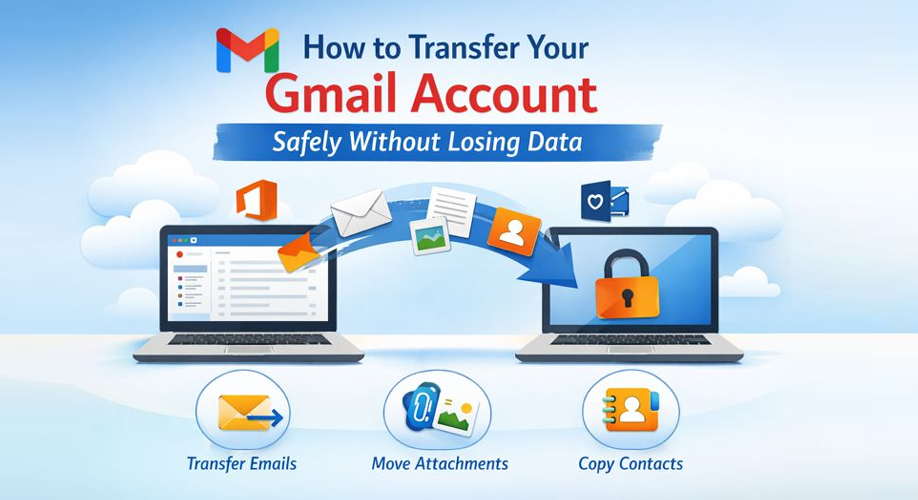







Gmail helps you to create a clone of Gmail data from one account to another Gmail account without losing data. It does not allow you to create a duplicate account from the same email address, but it allows you to copy or transfer data. This process is also called Gmail cloning.
In this guide, we will describe both manual and professional methods that lets you create a copy of Gmail data without any problem. People usually do this when they want to move to a new Gmail account, keep a backup of important emails, or manage data across multiple accounts. If you follow the right steps then all your emails, attachments, and folders can remain intact during the process.
Why Do Users Create a Copy of Their Gmail Data?
- If the main account gets locked, hacked, or deleted by mistake, copy or backup emails help save important messages and files.
- Transferring emails to a new Gmail account helps keep your message history intact.
- Moving older emails to another account helps keep your inbox uncluttered and your storage free.
- Many people keep work and personal emails separate, while still having access to both.
- Copying emails helps you read them even if you forget your password.
Advanced Method to Move Gmail Data Without Loss
To copy Gmail data you can use a Corbett Gmail Backup software. It has an user-friendly interface for both technical and non-technical users. If you face any problem you can contact the customer support team.
The software allows you to transfer emails, attachments, and folders to another account without losing any information. It also lets you export multiple Gmail emails at once without any file size limitations.
Steps to Copy Gmail Data with a Professional Tool
- Download and install the software on your computer.
- Then, click open then, choose email accounts and add credentials.
- Now, preview emails in different modes like content, message header, hex view and more.
- After that, select Gmail as a saving format to transfer the data.
- Finally, choose a desirable location where you want to save the file and click save.
Steps to Transfer Gmail Data Manually
Using Gmail Import/POP3:
- First, log in to your new Gmail account.
- Then, go to Settings → Accounts and Import → Import mail and contacts.
- Add your old Gmail account info.
- Now, choose what you want to move (emails, contacts).
- Click start and wait for it to finish.
Using Google Takeout:
- Go to Google Takeout and sign in to your old Gmail.
- Choose Gmail (that you want to transfer).
- Export it as a file (e.g. MBOX file format).
- Download the file to your computer.
- Open it in your new Gmail or in an email program.
Limitations of Manual Method You Must Know
- Manual transfers may take longer when dealing with large Gmail accounts.
- Emails and attachments may not appear exactly the same after transfer.
- POP/IMAP setup and Google Takeout files can be hard for beginners to understand.
- Emails received during the transfer may take time to appear in the new account.
- Mistakes during the process can result in incomplete data.
Advanced Features of Automated Software
Batch Mode Feature: The software allows you to move emails from one or many Gmail accounts at the same time. It saves users time when they are dealing with large data.
Multiple Ways to Save and Move Gmail Data: The tool lets you transfer or save emails in multiple formats and accounts, including cloud services, email clients, and document types.
Compatible with All Versions of Windows: It works on most Windows computers, such as Windows 11, 10, and older versions like Windows Server 2016 and 2012.
Simple Interface for Everyone: The software has an easy-to-use design for both professional and non-professional users.
Advanced Search and Filter Option: The advanced email search helps you move selective emails you need. You can filter by date, sender, subject, and more.
Preview Panel: A reliable software also provides a preview mode to view emails in Content, Message Header, Hex View, Properties and more.
Final Thought
Gmail doesn’t allow creating an exact duplicate account, but you can safely transfer emails, attachments, and other data to a new account. Manual methods work well for small or simple mailboxes, though they come with some limitations.
For larger, important, or business-critical data, professional migration tools offer a faster, more reliable, and secure solution. The best approach depends on mailbox size, technical comfort, and need for accuracy, ensuring your Gmail data stays safe and fully accessible.







Add Comment