













Managing your contacts across many platforms can be difficult, especially when you need to convert them from a format like vCard (VCF) to CSV, which is more versatile and usable in applications like as Excel, Google Sheets, and Apple Numbers. This post will show you how to convert VCF to CSV for better contact management, syncing, or backup, especially with Apple iCloud.
This article will provide you some secure and free ways to convert vCard to CSV online, as well as some points you should keep in mind while doing the conversion. Finally, it will give you a professional option for making a lot of conversion or making sure they are correct.
Why Convert vCard (VCF) to CSV for Apple iCloud?
You can import and export contacts in vCard format with Apple iCloud. This is perfect for Apple devices like the iPhone, iPad, and Mac. But if you need to-
- View or edit contact data in Excel or Numbers
- Add contacts to platforms other than Apple
- Perform bulk updates
- Share contact lists with businesses or teams
- Save your iCloud contacts in a format that everyone can read
…then you need convert the vCard to CSV.
CSV (Comma-Separated Values) files are excellent for keeping a lot of contact information in a single location and make it easy to change fields like names, emails, phone numbers, and addresses.
Understanding the vCard (VCF) Format
This is a quick breakdown before we get started-
- VCF is a typical file type for digital business cards.
- It keeps information about contacts, such as their full name, phone number, email address, home address, photo, and other metadata.
- iCloud, iPhone, Gmail, Outlook, and a lot of other services support it.
But it is not easy to read or update VCF files manually, especially if you have a lot of contacts. That is when the CSV format becomes more useful.
Exporting Contacts from iCloud as vCard
Before you can convert your vCard file to CSV, you need to get it ready. If you already have contacts in iCloud, do the following-
- Sign in to iCloud.com using your Apple ID.
- Click on “Contacts.”
- Choose all of your contacts (on a Mac, use Cmd + A; on a Windows PC, use Ctrl + A).
- The gear symbol in the lower left corner can be clicked.
- Choose Export vCard.
This will download a .vcf file with all the iCloud contacts you selected. Now you can change them into CSV format.
Free Online vCard to CSV Conversion (Basic Method)
There are a number of online free applications that can convert VCF files into CSV files. These tools are useful, however they often have certain problems-
- Limits on the size of files
- Only converting one file at a time
- Field mapping that fails to always be right
- Not much help for multi-contact VCFs
Below is a common way to use an online converter-
How to Convert vCard to CSV Online
- Go to a free online tool that can convert vCards to CSV files (look for VCF to CSV converter online).
- Put your .vcf file online.
- Choose the export format you want (CSV).
- Click Convert and then Download to get your CSV file.
Caution- Always make sure you are on a trustworthy website, because giving out your contact information can make you feel less safe. Stay away from sites that have demanding marketing or privacy rules which are not clear.
Manual Method Using Windows Contacts App
If you have a Windows PC, you can use the Contacts software to convert vCard to CSV.
Steps-
- Type Contacts into the Windows search bar and press Enter.
- Click on Import (it can be in the toolbar).
- Choose the VCF file type and then choose your .vcf file.
- Click Export when the contacts have been added.
- Save it in the CSV (Comma Separated Values) format.
This approach is free and does not require an internet connection, but it is not always the best choice for big or multi-layered VCF files. It might lose some fields or mess up the way the data is formatted.
Limitations of Free vCard to CSV Methods
Online tools or manual conversions might work for minimal files or casual use, but they have multiple problems-
- Not a lot of help with more than one VCF file or merged VCFs.
- Not all fields from VCF may transfer correctly.
- Privacy risk when uploading contact details online.
- No possibilities for previewing or mapping before conversion.
- No batch conversion.
A dedicated VCF to CSV converter is the best way to go for end users who need a safe, professional, and accurate way to do things, especially for corporate use or moving a lot of iCloud contacts.
Best Professional Solution to Convert vCard to CSV – Accurate and Safe
A professional software is the best way to go if you have a lot of VCF files, thousands of contacts, or need to convert data without any mistakes.
The DataVare Address Book Converter is a reliable software that converts vCard files to CSV format quickly and correctly. The software can handle both single and batch VCF files, and it makes sure that no data is lost or missing during the process. It is really helpful whether you are moving from iCloud to Excel or just want to preserve a contact list that is organized and can be transformed.
Key Features
- Converts single or multiple VCF files to CSV.
- Keeps all of the contact details, like name, phone number, email address, and more.
- Works with vCard files from iCloud, iPhone, Gmail, Outlook, and additional sources.
- Keeps the original layout and field mapping.
- Fully compatible with Windows OS and easy to operate without technical skills.
How to Use the Software
- Download and install the tool on your computer.
- Select Import vCards into CSV file format option.
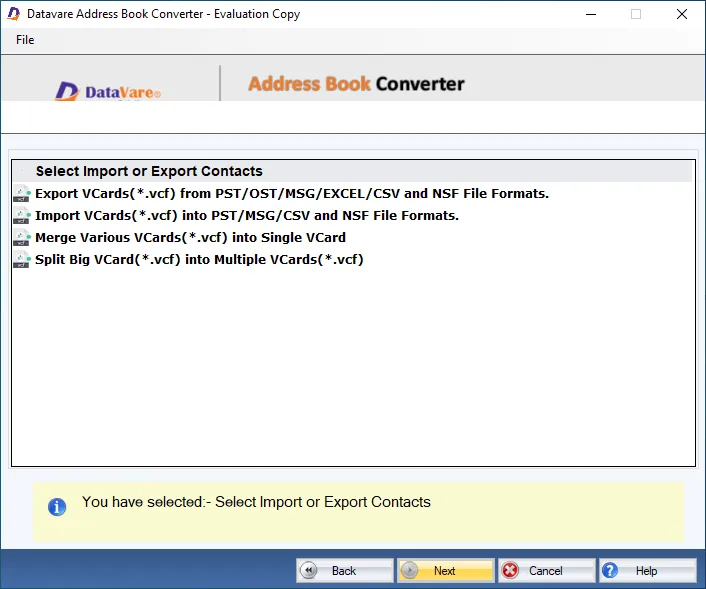
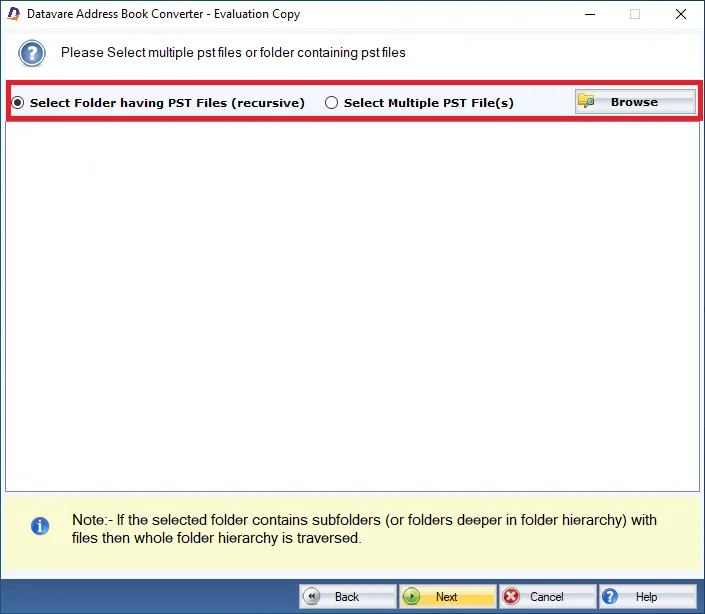
- Launch the application and click Add File or Add Folder to upload your .vcf file(s).
- Choose CSV as the output format.
- Select the destination folder where the converted file will be saved.
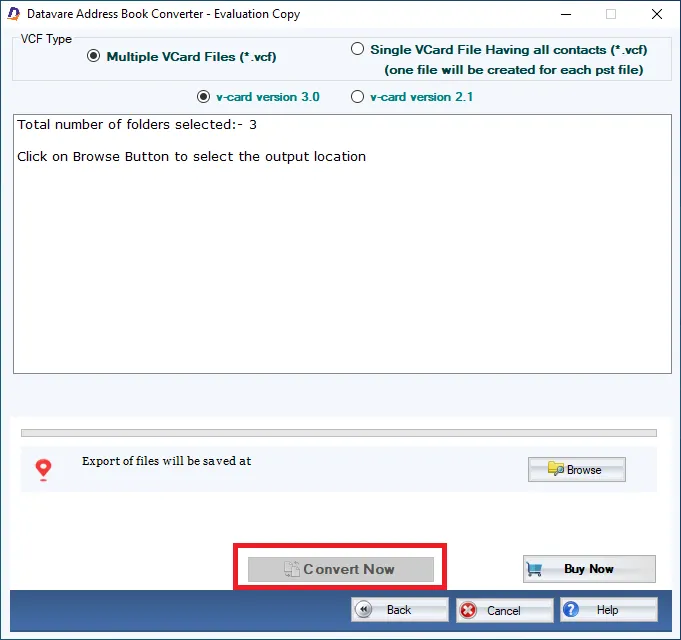
- Click on Convert Now to begin the conversion.
The process is straightforward and doesn't require any internet connection—making it more secure than online converters.
Final Thoughts
Converting vCard to CSV is essential when you need to access or edit iCloud contacts in spreadsheet formats like Excel or Apple Numbers. There are free online tools and manual approaches, but they are not always reliable, confidential, or complete, especially for people with big contact lists or private data.
Professional solutions like DataVare VCF to CSV Converter make the task easy and give you a smooth, accurate, and safe experience. Using the correct tool makes sure that your contact information is safe and well-organized, whether you are synchronizing contacts between platforms, getting ready for a mass import, or just backing up your iCloud address book.
Read more: How to Change a VCF File to CSV?







Add Comment